IN THIS ARTICLE
- Overview
- Enable AI Settings
- Configure Global Settings
- Generate AI Descriptions per Vehicle
- Manage Versions
- Tips for Effective Use
Overview
The AI Vehicle Description Builder is a tool to help dealers create professional, engaging, and optimized vehicle descriptions—instantly. Instead of spending time manually writing listings, this tool uses artificial intelligence to generate high-quality descriptions that are consistent, persuasive, and tailored to your audience.
This tool is designed to:
- Save time by generating descriptions in seconds
- Improve consistency and eliminate grammar/spelling errors
- Highlight key vehicle features and selling points automatically
- Support bilingual marketing (English and Spanish)
- Enhance SEO and customer engagement
- Ensures accuracy by pulling only verified, positive data (e.g., clean history reports)
Enable AI Settings
To get started, you’ll need to ensure that the AI Descriptor Tool is turned on in settings.
- Navigate to Settings > Inventory> AI > Vehicle Description Section
- Select the AI Description Generator section.
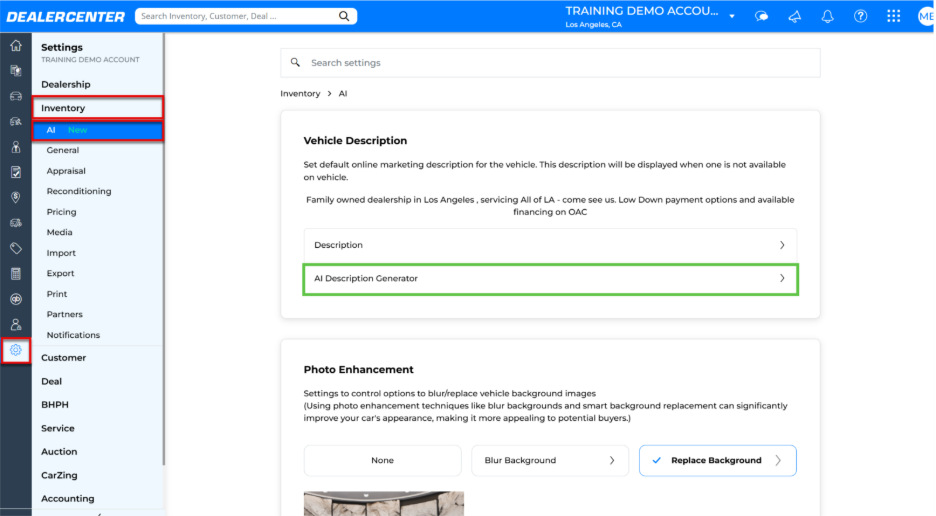
- Enable the AI Description Generator feature.
Once enabled, you’ll be able to configure global preferences and generate descriptions per vehicle.
Configure Global Settings
Global settings apply by default across your inventory but can be customized per vehicle. Available options include:
-
Tone Options: Choose between Formal, Enthusiastic, Urgent, or Conversational.
-
Style: Select Paragraph or Bullet Points.
-
Length: Pick from Optimal, Full-Length, or Title (short).
-
Language: English or Spanish.
-
Optional Occasion: Target seasonal events (e.g., Graduation, 4th of July, Black Friday).
-
Audience Targeting: Focus descriptions (e.g., Families, Luxury, College Students, Electric/Hybrid).
-
Highlights (Include/Exclude): Toggle specific features like AutoCheck or Carfax data (only positive points are included).
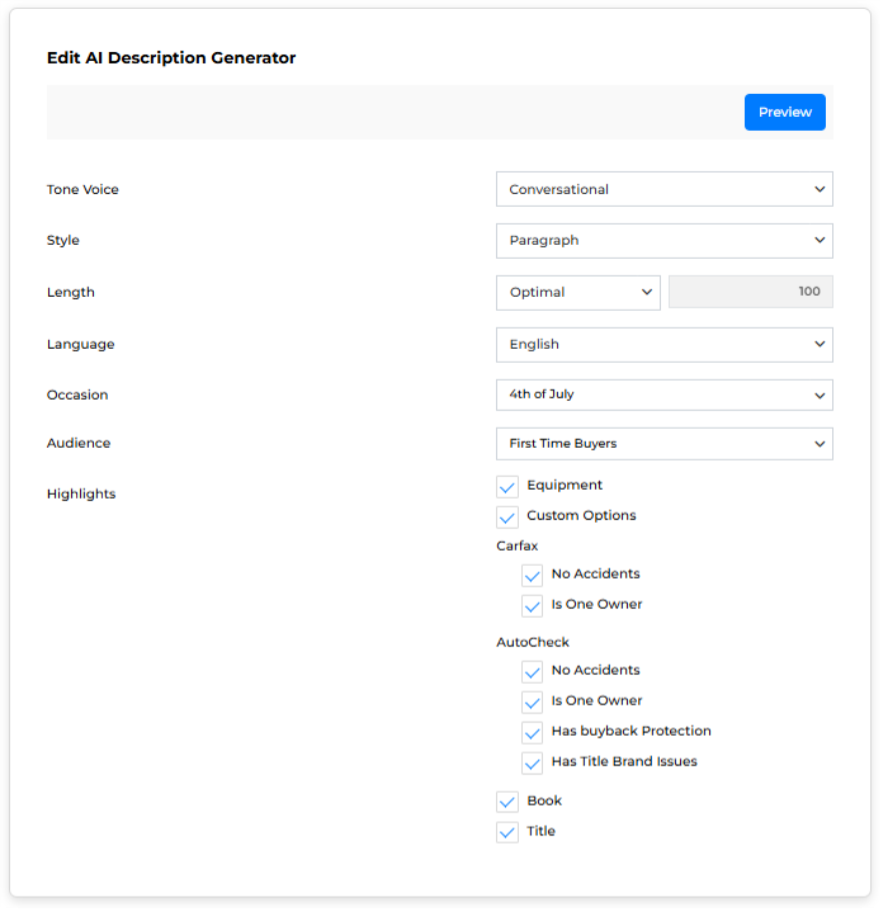
Before applying settings across your inventory, you can preview how they will look:
- Select a sample vehicle from your inventory
- Preview the description using your chosen tone, style, and language
- Adjust settings as needed before saving
Generate AI Descriptions per Vehicle
To generate an AI description for a specific vehicle:
- Go to Inventory > Active Inventory List
- Open a vehicle and navigate to the Description tab
- Click AI Description Generator
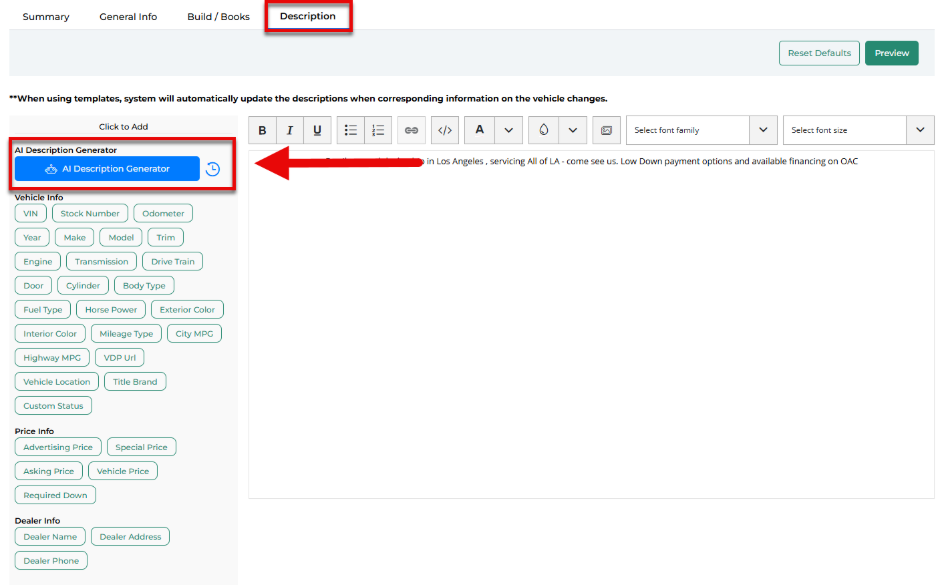
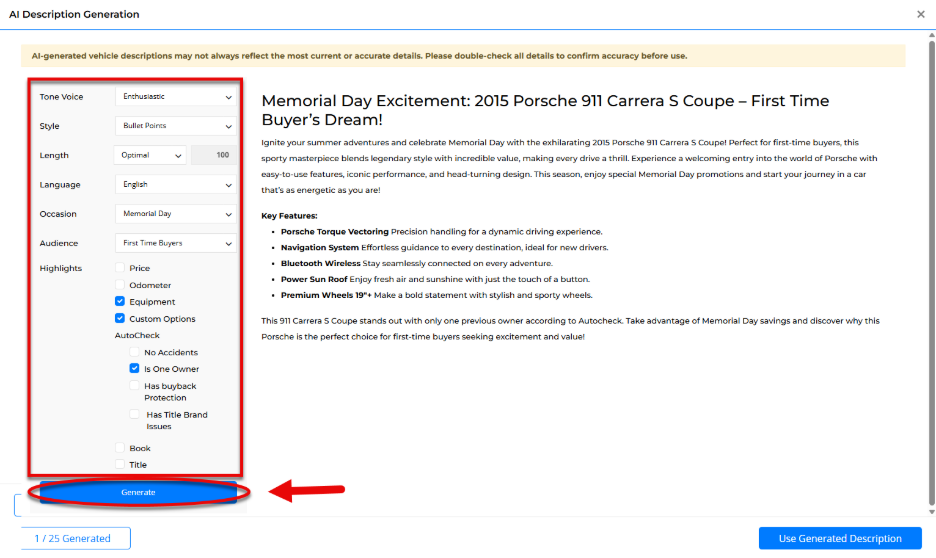
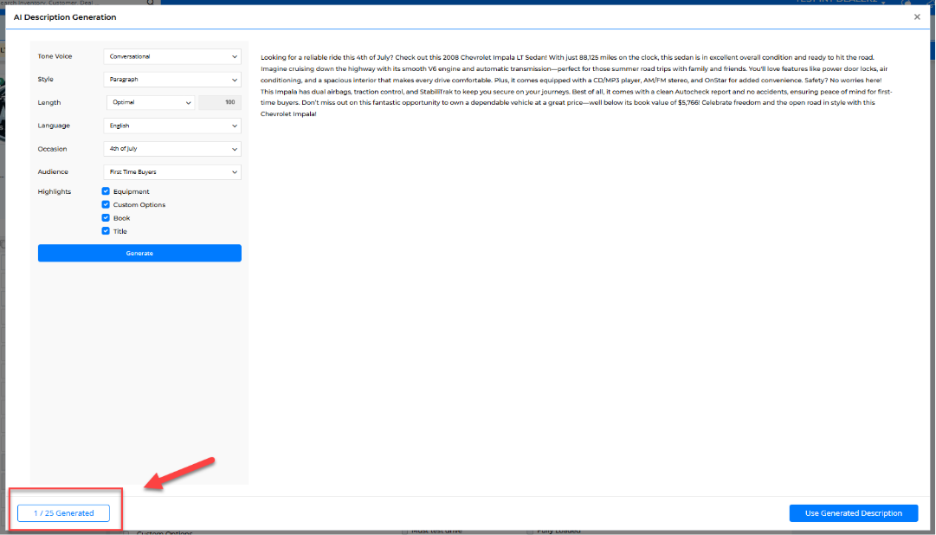
- Customize tone, style, language, and other settings as needed
- Click Generate
- View, edit, or regenerate (up to 25 times per vehicle)
- Save and apply your preferred version
Manage Versions
Each generated description is saved with a timestamp. You can:
- Review multiple versions
- Select the one to publish
- Regenerate if vehicle details change (e.g., price updates)
This ensures your listings stay accurate and up to date.
Tips for Effective Use
- Use global settings for consistency but adjust per vehicle when necessary.
- Leave optional fields (occasion/audience) blank unless specifically needed.
- For SEO, add custom keywords in the header or footer manually. Users can add default descriptions that are SEO optimized and apply it in their settings.
- Regenerate descriptions if major vehicle info changes (e.g., price changes affecting book value).